Squid: Take Notes, Markup PDFs
- 4.1
- Rating
- 10.00M
- Installs
- Free
- Price

 Analysis by App-foxy
I like note-taking apps that understand handwriting is not just typed text with a different input method. Squid: Take Notes, Markup PDFs is built around that idea. It is a productivity app from Steadfast Innovation, LLC for writing with a finger or stylus, organizing pages, working on PDF documents, and sharing the result. After using it as a digital notebook, I found its strongest quality is the feeling of working on a flexible sheet of paper rather than filling in a rigid form.
That makes it especially appealing for class notes, quick diagrams, marked-up reading, meeting notes, and personal sketches. It is free to start, rated for Everyone, and has reached over ten million installs with an average rating of 4.1 from roughly seventy thousand ratings. Those numbers suggest a well-established app, but they do not remove the need to look closely at how its workflow fits your habits.
How Squid fits into everyday note-taking
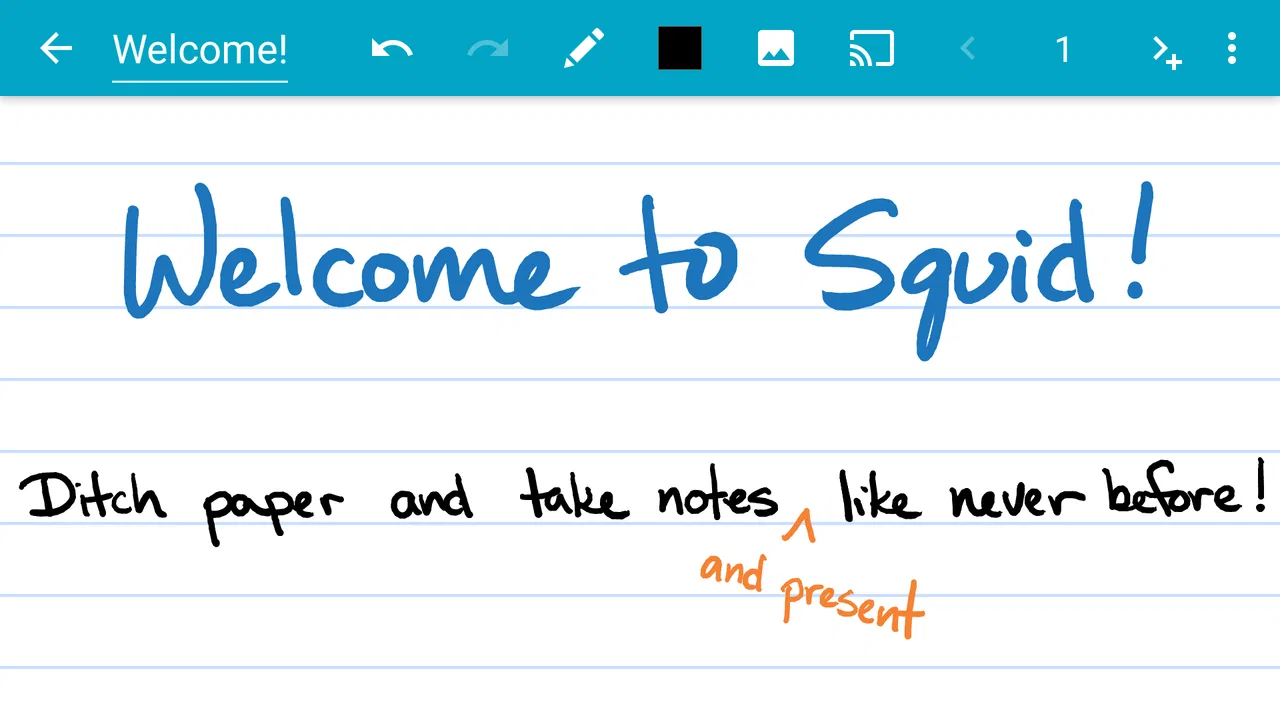
The basic experience is straightforward: create a notebook or page, choose a writing tool, and put information down naturally. I found this more comfortable than trying to force every thought into a text box. A handwritten page can hold a heading, an arrow, a small sketch, a calculation, and a paragraph without making me switch between separate modes for every element.
You May Also Like

 AccuWeather: Weather Radar
AccuWeather Review: A Quick, Clear Forecast for Everyday Decisions
For everyday plans, the best forecast is the one you can understand quickly. AccuWeather makes rain timing, radar, and local conditions easy to act on, with a few trade-offs.

 Hill Climb Racing
Why Hill Climb Racing Still Turns Crashes Into One More Run
A tiny car, a bumpy hill and one more upgrade: Hill Climb Racing keeps resurfacing because its simple chaos makes every near-miss feel personal.

 AliExpress - Shopping App
AliExpress Makes Global Shopping Feel Personal, but Shoppers Bear the Risk
AliExpress turns a global marketplace into a pocket-sized discovery engine. Its reach is useful, its shopping loop compelling, and its trade-offs easy to miss.

 Lords Mobile: Kingdom Wars
Lords Mobile Is a Kingdom-Building Routine, Not a Quick Match
A case-by-case verdict on the building, battles, device demands, and social commitments that make Lords Mobile rewarding for some players and exhausting for others.

 PDF Scanner app - TapScanner
TapScanner Makes Paperwork Easier to Capture, Check, and Share
TapScanner makes scanning with a phone feel less like a rescue operation and more like a dependable step in getting work done. Its capture tools are useful, though not flawless.

 Block Blast!
 Shows How Much a Puzzle Game Can Leave Out
A quiet grid game shows why puzzle players increasingly value instant clarity, repeatable skill and low-pressure play—and where the genre still needs to catch up.
More From Our News Desk
View All News


That flexibility is the main reason to choose Squid over a conventional text-first notes app. Typed apps are usually better when I need searchable paragraphs, fast copying, or polished documents. Squid is better when the shape and position of information matter. A student can place a formula beside a diagram, while someone in a meeting can draw connections between names and decisions without interrupting the conversation to format everything.
The app also handles PDF markup, which changes its role from a simple notebook into a practical reading tool. Instead of opening a document in one app and writing observations somewhere else, I can work directly on the page. That is useful for worksheets, drafts, handouts, forms, and reference documents where the location of a note matters as much as the note itself.
I would not treat it as a complete replacement for every document editor. Handwriting remains the center of the experience, so anyone who mainly wants long typed reports, advanced text formatting, or a database of structured information may feel more at home with a traditional productivity suite. Squid makes sense when visual thinking and direct annotation are part of the task.
What the free starting point really offers
Squid is listed as free, so there is no purchase required simply to try its core idea. That matters because handwriting apps can be difficult to judge from screenshots. The experience depends on whether the pen tools feel natural, whether page navigation suits you, and whether PDF work fits your routine. A free entry point lets me test those things before committing money.
There are also in-app purchases priced from one dollar to fourteen dollars and ninety-nine cents per item. I see that as a tiered value question rather than an automatic drawback. The free access is useful for evaluating the writing surface and basic workflow, while paid items may make sense for people who use the app regularly and want more from it. The important point is to decide based on your actual routine: occasional handwritten notes do not justify the same spending as daily study or professional annotation.
I would be careful about assuming that paying makes Squid equivalent to a full desktop publishing or office package. The value is in the focused notebook experience. If your goal is to write by hand, mark PDFs, and share pages, the purchase path can be relevant. If your goal is advanced collaboration, extensive text editing, or a broad project-management system, paying for extra app capabilities may not solve the real mismatch.
Because the app has an Everyone content rating, it is suitable for a broad audience in terms of content classification. That does not mean every workflow will suit every age group equally. A young student may need a simple notebook structure, while a professional may care more about how efficiently pages can be labeled, reviewed, and shared. The same uncluttered canvas can feel liberating to one person and too open-ended to another.
Writing, drawing, and organizing ideas
The most useful habit I developed was separating pages by purpose instead of trying to maintain one endless notebook. For example, I would keep lecture notes apart from rough brainstorming and PDF reading. This makes later review less frustrating because a page created for quick thinking does not get mixed with material I expect to revisit carefully.
Handwriting also changes how I capture information. With a keyboard, I tend to record sentences in the order I hear them. On a Squid page, I can leave space, draw a bracket, circle an uncertain point, and return to it later. That is a small but important advantage during a fast class or meeting. I am not forced to decide the final structure while someone else is still speaking.
A useful advanced workflow is to use visual marks as temporary metadata. I might circle an item that needs checking, underline a decision, and put an arrow beside something that belongs on another page. Later, I can turn those marks into a short action list. This is faster than interrupting note-taking to create a perfectly organized system, but it requires a review habit; otherwise, the page remains expressive without becoming useful.
Another trade-off is precision. A stylus can make writing far more comfortable than a finger, especially for small annotations. On a phone-sized screen, however, even a good handwriting app has less room than paper. I prefer a larger display for diagrams and detailed PDF comments, while a phone is convenient for quick notes. Squid can travel with me, but the device still affects how enjoyable the writing feels.
Using the PDF workflow properly
PDF markup is most valuable when the document itself is the object of thought. I can read a page, write a question beside a paragraph, circle a figure, or add a short explanation near a problem. That keeps context visible. When I later return to the document, I do not have to remember which separate note belonged to which page.
For study, I would use one pass for understanding and a second pass for review. During the first pass, I would keep marks brief: a keyword, a question, or a connection to another idea. During review, I would add a cleaner summary on a separate page rather than covering every margin with writing. This prevents the common problem of turning a useful document into a crowded page that is difficult to scan.
For forms and work documents, I would first make a duplicate or preserve the original before adding annotations. That is not a special Squid feature; it is simply good document hygiene. Markup is powerful because it is direct, but direct editing also makes it easy to mix private comments with a version intended for sharing.
Sharing is another reason the app can be practical. A handwritten page is not useful to colleagues or classmates if it stays locked on one device. Squid’s ability to share notes and marked documents makes the workflow more complete, particularly when I need to send a visual explanation rather than retype it. I would still inspect the exported result before sending important material, because handwritten content should be checked for legibility and completeness just like a typed document.
Where it differs from ordinary alternatives
Compared with a standard notes app, Squid gives handwriting and page layout priority. A text-first app wins when I need instant search, clean copy-and-paste, or a note that will become an email. Squid wins when I need to preserve the spatial relationship between ideas. Neither approach is universally better; they support different kinds of thinking.
Compared with writing on paper, Squid adds digital sharing and PDF annotation. It also keeps notes on a device rather than in a physical folder, which can reduce the effort of carrying several notebooks. Paper still has advantages: it never runs out of battery, offers a familiar texture, and can be easier for large diagrams. I would choose Squid when digital documents and sharing are central, not simply because handwriting is involved.
Compared with a full tablet note-taking suite, Squid feels more focused. That can be a strength for someone who wants a clear writing canvas without building a complicated system. The trade-off is that users seeking extensive project organization, rich typed layouts, or a broad ecosystem may find a larger suite more suitable. The right choice depends on whether the note itself is the destination or just one part of a wider workflow.
Small habits that make the app more useful
I recommend deciding in advance what a page is supposed to become. If it is a temporary scratchpad, write quickly and do not waste time making it attractive. If it is a reference page, leave margins and use consistent headings. This simple distinction prevents me from expecting one page to serve brainstorming, archiving, and presentation at the same time.
For lectures or meetings, I would reserve a narrow area for follow-up tasks. I can write the main discussion across the page and keep questions or actions in that reserved space. Afterward, reviewing only that area gives me a faster way to find unfinished work than rereading every line.
For PDF reading, I would avoid highlighting everything. A few deliberate marks are more useful than a page covered in color. I also find it helpful to add a short handwritten explanation in my own words rather than copying a long passage. That turns markup into active recall instead of decoration.
When sharing, I would use a final review pass: zoom out, check whether the page is readable, and make sure arrows or notes do not obscure important document content. This is particularly important when a page contains both original PDF text and handwritten additions. A quick visual check can prevent confusion for the person receiving it.
Who will get the most value
Squid is a strong fit for students who learn through diagrams, calculations, and handwritten summaries. It is also useful for teachers, designers, planners, and anyone who regularly thinks on a page rather than in a linear paragraph. People who annotate reading material or complete PDF worksheets can benefit from keeping the source and their comments together.
It is less convincing for someone who rarely writes by hand. If you mostly create shopping lists, short typed reminders, or long documents, a simpler text notes app will probably be quicker. I would also hesitate to recommend it as the only tool for a person who needs a highly searchable archive of typed information. Handwriting can be meaningful and fast, but it is not automatically the easiest format to retrieve later.
Device choice matters too. Someone with a comfortable stylus and a larger screen is likely to enjoy the experience more than someone trying to produce detailed notes with a fingertip on a small phone. The app can still be useful on a phone for brief annotations, but I would not buy a stylus or change devices solely on the assumption that every handwritten workflow will feel equally natural.
My value judgment and final recommendation
After using it as a handwriting-first productivity tool, I see Squid as a focused alternative rather than a universal notes replacement. Its free starting point makes experimentation easy, and the paid items create a path for users who decide that handwritten pages and PDF markup are part of their regular work. The value is strongest when those two activities save real time or make information easier to understand.
The limitations are equally clear. A visual page can become disorganized without a review system, small screens can make detailed writing tiring, and people who depend on typed search or advanced document formatting may outgrow the format. These are not reasons to dismiss the app; they are reasons to choose it for the right job.
My recommendation is to try Squid if you want your tablet or phone to behave more like a flexible digital notebook. I would choose it for handwritten class notes, PDF worksheets, visual planning, and meeting pages that need to be shared. I would skip it in favor of a text-centered or broader productivity tool if your priority is typed documents, database-style organization, or complex collaboration. For the right user, the app’s value is not that it imitates paper perfectly, but that it combines the freedom of a page with the convenience of digital documents.
Steadfast Innovation, LLC has kept the concept clear: write naturally, work directly on documents, and share the result. With over six thousand written reviews and a long presence in the productivity space since its release in March 2012, Squid has had time to establish a recognizable purpose. I would not recommend it because it tries to do everything. I would recommend it because, when handwriting is the best way to think, it stays focused on making that process practical.
FAQs for Squid: Take Notes, Markup PDFs
01What is Squid: Take Notes, Markup PDFs used for?
Squid is a handwriting-focused note-taking app for Android devices. It lets you write with a finger or compatible stylus, create notebooks, draw diagrams, annotate documents, and mark up PDF files. It is particularly useful for students, teachers, professionals, and anyone who prefers writing naturally instead of typing. Notes can be organized into notebooks and edited with tools such as selection, erasing, highlighting, shapes, and image insertion.
02Does Squid support PDF annotation and document markup?
Yes. Squid can import PDF documents so you can write directly on pages, highlight text, add handwritten comments, draw shapes, and mark important sections. This makes it useful for reviewing assignments, signing or commenting on documents, and studying from digital textbooks. Depending on the device and available features, some advanced PDF options or export capabilities may require a premium subscription or in-app purchase.
03Can I use Squid without a stylus or active pen?
You can use Squid with your finger, although a stylus generally provides a more comfortable and accurate writing experience. On compatible devices, active pens may offer pressure sensitivity, palm rejection, and smoother handwriting. Finger input is convenient for quick notes, highlighting, or basic sketches, but users who plan to write long pages or annotate many documents should check whether their phone or tablet supports a compatible pen.
04Is Squid: Take Notes, Markup PDFs free to download?
Squid can generally be downloaded and used with basic note-taking functions at no initial cost, but the exact availability of features may vary by platform, device, and current app version. Premium tools can include additional writing options, advanced PDF functions, cloud-related features, or export choices. Before downloading, review the Google Play or App Store listing and the in-app purchase information to understand which features are free and which require payment.
05Does Squid synchronize notes across devices or provide cloud backup?
Squid’s synchronization and backup options depend on the version of the app, your operating system, and the features included with your account or subscription. Users should not assume that every handwritten note is automatically available on another phone or tablet. Before relying on Squid for important school or work documents, check the current backup and export tools, and save essential notebooks or PDFs manually so they can be recovered if the device is lost or replaced.
Pros
- Handwriting feels natural with responsive pen and touch controls.
- Customizable paper styles help organize notes for different subjects.
- Useful zoom feature makes detailed writing easier on smaller screens.
- Notes can be grouped into notebooks for cleaner organization.
- PDF markup tools support highlighting
- drawing
- and handwritten comments.
Cons
- Several advanced tools require a premium subscription.
- Large notebooks may take longer to load on older devices.
- Handwritten notes are not always easy to search or convert to text.
- Exported documents may not preserve every formatting detail perfectly.
- Some stylus features depend on device and active pen compatibility.

Squid: Take Notes, Markup PDFs
Gallery